Documentation for Substance 3D Sampler is now available on Experience League. After March 14th, HelpX pages will automatically redirect to the equivalent Experience League page.
Refer to the FAQ for more information about which documentation is affected.
Last updated on
Feb 20, 2025
- Substance 3D home
- Home
- Getting Started
- Getting Started overview
- Activation and licenses
- System requirements /content/help/en/substance-3d-sam
- Shortcuts
- Importing Resources
- Report a bug
- Project Management
- Export
- Export overview
- Export Window
- Default Presets
- Managing custom presets
- Managing Presets
- Interface
- Interface overview
- The Home Screen
- 2D and 3D Viewport
- Sidebars
- Panels
- Tools and Widgets
- Preferences
- Filters
- Filters overview
- Custom Filters
- Compound Filters
- Generators
- Adjustments
- Tools
- Tools overview
- Atlas Creator
- Atlas Splitter
- Auto Tiling
- Channels Generation
- Channel Switch
- Clone Stamp
- Crop tool
- Delight (AI Powered)
- Height to AO
- Height to Normal
- Image To Material
- Make it Tile
- Match
- Multiangle To Material
- Normal to Height
- Paint Wrap *missing*
- PBR Validate
- Perspective Correction
- Tiling
- Transform
- Warp
- Warp Transform
- Upscale
- HDRI Tools
- Wear and Finish
- Technical Support
- Technical Support overview
- Exporting the log file
- Configuration
- Technical Issues
- Data or project issues
- Filter issues
- Interface issues
- Performance issues
- Stability issues
- Startup issues
- Features and workflows
- Pipeline and integrations
- Scripting and Development
- 3D Capture
- Release Notes
- FAQ
Preferences
Use the Preferences menu to customize Sampler to meet your needs.
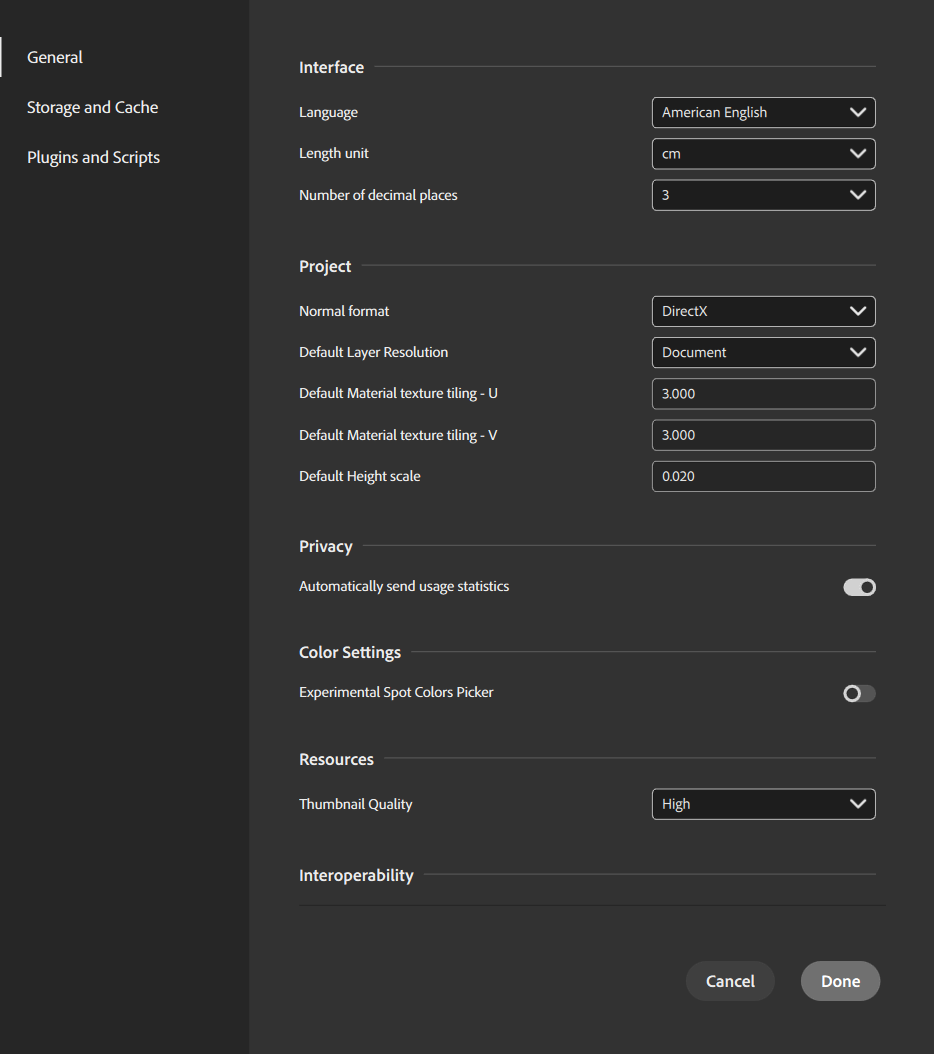
Use Edit > Preferences to access the Preferences menu.
The following options are available:
General
- Interface
- Language
Sampler currently supports the following UI languages.- American English
- French
- German
- Japanese
- Simplified Chinese
- Italian
- Spanish
- Portuguese
- Language
- Project
- Normal format
Set the normal format used in the application. - Default Layer Resolution
Set the default resolution strategy used in the application. - Default Material texture tiling - U
Set the default U texture tiling. - Default Material texture tiling - V
Set the default V texture tiling. - Default Height scale
Set the default height scale for materials.
- Normal format
- Color Settings
- Experimental Spot Colors Picker
Enable or disable the experimental color picker wherever a color select parameter appears. The experimental color picker allows you to pick colors directly from a collection of PANTONE swatches.
- Experimental Spot Colors Picker
- Resources
- Thumbnail Quality
Adjust the quality of thumbnails in the Assets panel. Decreasing thumbnail quality can improve thumbnail loading times.
- Thumbnail Quality
- Interoperability
- Send to Designer Format
Set the format the application will send to Designer.- SBS
- SBSAR
- Send to Designer Format
- Machine Learning
- GPU accelerated Neural Networks
Enable or disable the GPU accelerated Neural Networks to improve the performances of the applications.
- GPU accelerated Neural Networks
Storage and Cache
- Cache
Use these settings to update cache locations.- Path for cache of rendered textures
- Path for cache of thumbnails.
- 3D capture
Use this setting to update the 3D capture cache location.- Path for 3D capture cache
- Material capture
Use this setting to update Material capture cache location.- Path for Material capture cache.
- Captis IP address
Connect to a Captis device on your local network.
- Cache storage embedded in project files
Change how Sampler handles cached content when saving files.
Plugins and Script
- Interface
- Enable Log panel
Enable or disable the log panel.
- Enable Log panel
- Manage plugins
- Add a Plugin
- Manage scripts
- Add a script
