Documentation for Substance 3D Integrations is now available on Experience League. After March 14th, HelpX pages will automatically redirect to the equivalent Experience League page.
Refer to the FAQ for more information about which documentation is affected.
Last updated on
Jan 12, 2026

- Substance 3D home
- Ecosystems and Plugins
- Home
- Game Engines
- Game Engines overview
- Unreal Engine
- Unreal Engine 5
- Unreal Engine 5 overview
- Unreal Engine 5 Release Notes
- Plugin Overview - UE5
- Plugin Settings - UE5
- Substance Input Image - UE5
- Material Instance Definition - UE5
- Material Template Usage - UE5
- Out-of-the-Box Material Templates
- Physical size - UE5
- Tiling Substance - UE5
- Substance 3D Plugin Default Templates
- Substance 3D Assets Library Usage - UE5
- Blueprints - UE5
- Unreal Engine 5 Scripting
- Installing to Source Builds
- Unreal Engine 5 overview
- Unreal Engine 4
- Unreal Engine 4 overview
- Unreal Engine 4 plugin release notes
- Unreal plugin 4.27.0.1
- Unreal plugin 4.26.0.21
- Unreal plugin 4.26.0.2
- Unreal plugin 4.26.0.1
- Unreal plugin 4.25.0.5
- Unreal plugin 4.25.0.4
- Unreal plugin 4.25.0.3
- Unreal plugin 4.24.0.3
- Unreal plugin 4.23.0.2
- Unreal plugin 4.23.0.1
- Unreal plugin 4.22.0.33
- Unreal plugin 4.22.0.32
- Unreal plugin 4.21.0.31
- Plugin Overview - UE4
- Plugin Settings - UE4
- Substance Input Image - UE4
- Material Instance Definition - UE4
- Tiling Substance - UE4
- Working with Bump Offset (Parallax) - UE4
- Working with Displacement - UE4
- Source in UE4
- Live Link in UE4
- Blueprints - UE4
- Unreal Engine 4 Scripting
- Unreal Engine 4 overview
- Unreal Engine 5
- Unity
- Unity overview
- Unity Release Notes
- Downloading Substance 3D Plugin in Unity
- Unity Plugin Overview
- Unity Preferences
- Optimization Guidelines
- Upgrading Projects/Known Issues
- Managing Substance Graphs
- Changing parameters
- Generated Textures (Packing)
- Rendering Color Space
- Using Image Inputs
- Publishing for Mobile
- Substance 3D for Unity Scripting
- API Overview
- Scripting API
- C# Example Script
- Substance 3D Assets Library Usage
- Removing Substance Plugin
- Substance 3D in Unity Tutorials
- Physical Size in Unity
- Sharing sbsar Files Between Projects
- Unity overview
- Lumberyard
- Roblox
- 3D Applications
- 3D Applications overview
- Maya
- 3ds Max
- MODO
- MODO overview
- Modo Plugin Release Notes
- Substance in MODO Overview
- Modo Installation
- Parameters
- Custom Materials
- Working with Normals
- Working with Emissive
- Bump and Displacement
- Working with References
- Animating Substances
- Copy/Duplicate Substance
- Environment and Rendering Setup
- Modo Switch Engine
- Tiling Modo textures
- MODO overview
- Cinema 4D
- Houdini
- Blender
- Blender overview
- Release Notes
- Substance in Blender Overview
- Downloading and Installing the Plugin
- Preferences
- The Substance 3D Panel
- Shortcuts and Navigation
- Workflows
- Physical size in Blender
- Substance 3D Assets Library
- Troubleshooting
- Uninstalling the Add-on
- Substance 3D Add-on for Blender Tutorials
- Blender overview
- Creative Cloud Applications
- Renderers
- Partnerships
API Overview
Substance.Game
Using Substance.Game
Substance.Game is the assembly that contains the classes used for scripting. These classes are as follows:
Substance.Game.Substance: References the sbsar
Substance.Game.SubstanceGraph: Individual graph in the sbsar. (used to be ProceduralMaterial in Unity 2017)
Scripting Process
- Create an instance of SubstanceGraph
- Set parameters on the graph instance.
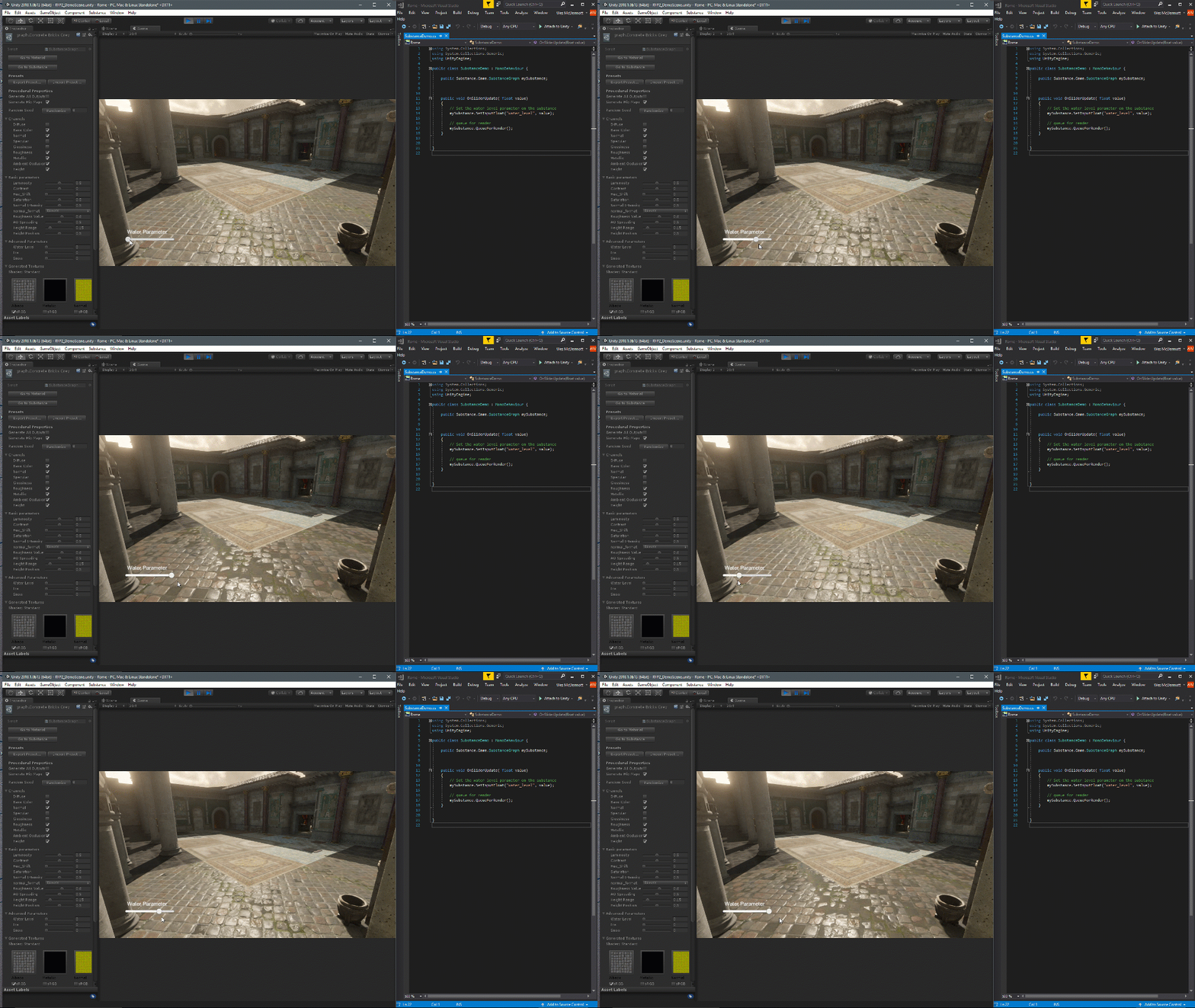
- Queue the Substance for Rendering: QueueForRender() will add the substance graph to a queue. This list will be processed by the next call to RenderAsync or RenderSync.
Graph instance parameters
// panel color
mySubstance.SetInputColor("paint_color", color);

// panel size
mySubstance.SetInputVector2("square_open", panelSize);

// wear level
mySubstance.SetInputFloat("wear_level", wearLevel);
The value in quotes is the parameter Identifier set in Substance Designer.
In the Unity Inspector, you can mouse over a parameter to reveal a tooltip that showcases the name of the Identifier set in Substance Designer.

Queue the substance for rendering
// queue the substance to render
mySubstance.QueueForRender();

//render all substances async
Substance.Game.Substance.RenderAsync();
Note
Currently, we only support x86_64 Architecture. You need to set x86_64 in the Build Settings

