
What's New
Get Started
- Quick start guide for administrators
- Quick start guide for users
- For Developers
- Video tutorial library
- FAQ
- Enterprise Trial
Administer
- Admin Console Overview
- User Management
- Add, edit, and review active users
- Admin Console SSO
- Create function-focused users
- Review users who haven't completed verification
- Check for users with provisioning errors
- Change Name/Email Address
- Edit a user's group membership
- Edit a user's group membership through the group interface
- Promote a user to an admin role
- User Identity Types and SSO
- Switch User Identity
- Authenticate Users with MS Azure
- Authenticate Users with Google Federation
- Product Profiles
- Login Experience
- Group management
- Account/Group Settings
- Settings Overview
- Global Settings
- Account tier and ID
- New Recipient Experience
- Self Signing Workflows
- Send in Bulk
- Web Forms
- Custom Send Workflows
- Power Automate Workflows
- Library Documents
- Collect form data with agreements
- Limited Document Visibility
- Attach a PDF copy of the signed agreement
- Include a link in the email
- Include an image in the email
- Files attached to email will be named as
- Attach audit reports to documents
- Merge multiple documents into one
- Download individual documents
- Upload a signed document
- Delegation for users in my account
- Allow external recipients to delegate
- Authority to sign
- Authority to send
- Power to add Electronic Seals
- Set a default time zone
- Set a default date format
- Users in Multiple Groups (UMG)
- Group Administrator Permissions
- Replace recipient
- Audit Report
- Transaction Footer
- In Product Messaging and Guidance
- Accessible PDFs
- PDF/A workflows
- Healthcare customer
- New request signature experience
- New custom workflow experience
- New create template experience
- Account Setup / Branding Settings
- Signature Preferences
- Well formatted signatures
- Allow recipients to sign by
- Signers can change their name
- Allow recipients to use their saved signature
- Custom Terms of Use and Consumer Disclosure
- Navigate recipients through form fields
- Restart agreement workflow
- Decline to sign
- Allow Stamps workflows
- Require signers to provide their Title or Company
- Allow signers to print and place a written signature
- Show messages when e-signing
- Require signers to use a mobile device to create their signature
- Request IP address from signers
- Exclude company name and title from participation stamps
- Apply Adaptive Signature Draw scaling
- Digital Signatures
- Electronic Seals
- Digital Identity
- Report Settings
- Enable classic Reporting
- New report experience
- Classic report settings
- Security Settings
- Single Sign-on settings
- Remember-me settings
- Login password policy
- Login password strength
- Web session duration
- PDF encryption type
- API
- User and group info access
- Allowed IP Ranges
- Account Sharing
- Account sharing permissions
- Agreement sharing controls
- Signer identity verification
- Agreement signing password
- Document password strength
- Block signers by Geolocation
- Phone Authentication
- Knowledge-Based Authentication (KBA)
- Allow page extraction
- Document link expiration
- Upload a client certificate for webhooks/callbacks
- Timestamp
- Send Settings
- Show Send page after login
- Agreement creation experiences
- Require recipient name when sending
- Lock name values for known users
- Allowed recipient roles
- Allow e-Witnesses
- In-person signing config
- Recipient groups
- CCs
- Required fields
- Attaching documents
- Field flattening
- Modify Agreements
- Remove recipients from in-flight agreements
- Agreement name
- Languages
- Private messages
- Allowed signature types
- Reminders
- Signed document password protection
- Send Agreement Notification through
- Signer identification options
- Populate form fields with identity-verified data
- Content Protection
- Enable Notarize transactions
- Document Expiration
- Preview, position signatures, and add fields
- Signing order
- Enable hybrid signature flows
- Add myself
- Send only to internal recipients
- Download agreement link
- Form field borders
- Liquid mode
- Custom workflow controls
- Upload options for the e-sign page
- Post-sign confirmation URL redirect
- Restrict access to shared agreements
- Show Send page after login
- Message Templates
- Bio-Pharma Settings
- Workflow Integration
- Notarization Settings
- Payments Integration
- Signer Messaging
- SAML Settings
- SAML Configuration
- Install Microsoft Active Directory Federation Service
- Install Okta
- Install OneLogin
- Install Oracle Identity Federation
- SAML Configuration
- Data Governance
- Time Stamp Settings
- External Archive
- Account Languages
- Email Settings
- Migrating from echosign.com to adobesign.com
- Configure Options for Recipients
- Guidance for regulatory requirements
- Accessibility
- HIPAA
- GDPR
- 21 CFR part 11 and EudraLex Annex 11
- Healthcare customers
- IVES support
- "Vaulting" agreements
- EU/UK considerations
- Download Agreements in Bulk
- Claim your domain
- Report Abuse links
- System Requirements and Limitations
User profile and configurable features
- Address Book
Send, Sign, and Manage Agreements
- Recipient Options
- Cancel an email reminder
- Options on the e-signing page
- Overview of the e-sign page
- Open to read the agreement without fields
- Decline to sign an agreement
- Delegate signing authority
- Restart the agreement
- Download a PDF of the agreement
- View the agreement history
- View the agreement messages
- Convert from an electronic to a written signature
- Convert from a written to an electronic signature
- Navigate the form fields
- Clear the data from the form fields
- E-sign page magnification and navigation
- Change the language used in the agreement tools and information
- Review the Legal Notices
- Adjust Acrobat Sign Cookie Preferences
- Send Agreements
- Send (Compose) page
- Overview of landmarks and features
- Group selector
- Adding files and templates
- Agreement name
- Global Message
- Completion Deadline
- Reminders
- Password protect the PDF
- Signature type
- Locale for the recipient
- Recipient signature order/flow
- Recipient roles
- Recipient authentication
- Private message for the recipient
- Recipient agreement access
- CC'd parties
- Identity check
- Send an agreement only to yourself
- Send an agreement to others
- Written Signatures
- Compose in-person agreement
- Recipient signing order
- Hybrid recipient workflow
- Send in Bulk
- Send (Compose) page
- Authoring fields into documents
- In-app authoring environment
- Automatic field detection
- Drag and drop fields using the authoring environment
- Assign form fields to recipients
- The Prefill role
- Apply fields with a reusable field template
- Transfer fields to a new library template
- Updated authoring environment when sending agreements
- Create forms with text tags
- Create forms using Acrobat (AcroForms)
- Fields
- Field types
- Common field types
- E-signature fields
- Initials field
- Recipient name field
- Recipient email field
- Date of signing field
- Text field
- Date field
- Number field
- Checkbox
- Checkbox group
- Radio button
- Drop-down menu
- Link overlay
- Payment field
- Attachments
- Participation stamp
- Transaction number
- Image
- Company
- Title
- Stamp
- Field content appearance
- Field validations
- Masked fields values
- Setting show/hide conditions
- Calculated fields
- Verified forms
- Field types
- Authoring FAQ
- In-app authoring environment
- Sign Agreements
- Manage Agreements
- Manage page overview
- Copy an Agreement
- Delegate agreements
- Replace Recipients
- Limit Document Visibility
- Cancel an Agreement
- Create new reminders
- Review reminders
- Cancel a reminder
- Access Power Automate flows
- More Actions...
- How search works
- View an agreement
- Create a template from an agreement
- Hide/Unhide agreements from view
- Upload a signed agreement
- Modify a sent agreement's files and fields
- Edit a recipient's authentication method
- Add or modify an expiration date
- Add a Note to the agreement
- Share an individual agreement
- Unshare an agreement
- Download an individual agreement
- Download the individual files of an agreement
- Download the Audit Report of an agreement
- Download the field content of an agreement
- Bulk actions
- Hide multiple agreements
- Digitally sign multiple agreements
- Audit Report
- Reporting and Data exports
Advanced Agreement Capabilities and Workflows
- Webforms
- Reusable Templates (Library templates)
- Manage Shared Templates
- Transfer ownership of web forms and library templates
- Power Automate Workflows
- Overview of the Power Automate integration and included entitlements
- Enable the Power Automate integration
- In-Context Actions on the Manage page
- Track Power Automate usage
- Create a new flow (Examples)
- Triggers used for flows
- Importing flows from outside Acrobat Sign
- Manage flows
- Edit flows
- Share flows
- Disable or Enable flows
- Delete flows
- Useful Templates
- Administrator only
- Agreement archival
- Webform agreement archival
- Save completed web form documents to SharePoint Library
- Save completed web form documents to OneDrive for Business
- Save completed documents to Google Drive
- Save completed web form documents to Box
- Agreement data extraction
- Agreement notifications
- Send custom email notifications with your agreement contents and signed agreement
- Get your Adobe Acrobat Sign notifications in a Teams Channel
- Get your Adobe Acrobat Sign notifications in Slack
- Get your Adobe Acrobat Sign notifications in Webex
- Agreement generation
- Generate document from Power App form and Word template, send for signature
- Generate agreement from Word template in OneDrive, and get signature
- Generate agreement for selected Excel row, send for review and signature
- Custom Send workflows
- Share users and agreements
Integrate with other products
- Acrobat Sign integrations overview
- Acrobat Sign for Salesforce
- Acrobat Sign for Microsoft
- Other Integrations
- Partner-managed integrations
- Integration keys
Acrobat Sign Developer
- REST APIs
- Webhooks
- Sandbox
Support and Troubleshooting
Ensure your signed documents remain readable, accessible, and compliant decades into the future.
PDF/A is a specialized format developed for long-term document preservation. It restricts features like encryption, external fonts, and unsupported multimedia to keep files self-contained and accessible over time.
Using PDF/A helps meet regulatory requirements, protects document integrity, and avoids future file format issues. Acrobat Sign enforces PDF/A compliance throughout the agreement workflow—from upload to signature to storage.
PDF/A workflows are especially useful for organizations with long-term archiving needs, such as those in finance, healthcare, and government.
Benefits of using PDF/A workflows
- Meet compliance and retention regulations
- Maintain readable, stable document formatting
- Avoid costs from reformatting or migrating archived files
- Increase confidence in the integrity of signed records
Acrobat Sign supports converting files to either PDF/A-2B or PDF/A-3B file types.
Configuration
Availability:
- Acrobat Standard and Acrobat Pro: Disabled; Not Configurable
- Acrobat Sign Solutions: Supported
- Acrobat Sign for Government: Supported
Configuration scope:
Administrators can enable this feature at the account and group levels.
Access this feature by navigating the administrator's configuration menu to Global Settings > PDF/A Workflows

The following settings are available:
Enabling PDF/A Workflows gives administrators access to PDF/A controls and directs Acrobat Sign to validate and convert files to the PDF/A format.
Admins must select one of the two conformance levels for Acrobat Sign to convert files into when normalization is enabled. This is the default level of any agreement created if normalization is disabled:
| Conformance level | Description | Best for |
|---|---|---|
| PDF/A-2b | Preserves the document’s visual appearance for long-term archiving. Ensures text, fonts, images, and colors remain consistent over time. This is the most commonly used level for compliance. |
General compliance and standard archiving needs. |
| PDF/A-3b | Provides the same visual preservation as 2b, but also lets you embed non-PDF/A files (such as XML, CSV, or spreadsheets) inside the PDF for additional recordkeeping needs.. | Organizations that need to store source data or supplemental files along with the signed PDF. |
Enable PDF/A Normalization to actively convert uploaded files to the selected conformance level.
- PDF files will be validated and converted to the selected conformance level. PDFs uploaded with the selected conformance level will be evaluated and repaired if needed.
- If PDF/A workflows are enabled, but normalization is not enabled, Acrobat Sign evaluates each file uploaded and adopts the conformance level of the first PDF/A file uploaded with a supported standard.
- If no uploaded PDF document is PDF/A, then the agreement defaults to the conformity level selected in the controls.
When files are converted to the selected file standard and validated, there may be errors. These errors can stem from multiple sources and will bring the agreement process to a stop.
If the option to ignore the validation errors is enabled, Acrobat Sign will disregard the errors and proceed with the agreement generation. These agreements may not be fully PDF/A compliant, and should not be treated as such for any reason.
In this situation, the user must reformat their original file so that it no longer produces errors.
The most common errors are that the original document:
- Contains fonts that aren’t on the supported font list.
- Uses a color scheme other than sRGB.
The Signed Document Password Protection admin controls are altered to suppress any option that allows a sealing password to be applied:

Both the Request Signatures and Workflow Designer interfaces removes the option to add a password at the user level:

Acrobat Sign does not support editing or digitally signing PDF/A documents.
Enabling PDF/A Workflows disables the Download and Sign with Acrobat option for digital signature workflows. Agreements must be signed using cloud-based signatures.
Acrobat Sign does not support downloading and physically signing an agreement.
Enabling PDF/A Workflows automatically disables the Download and Sign with Acrobat option for digital signature workflows. Agreements must be signed using cloud-based signatures.

How it's used
When enabled, the PDF/A workflow includes validation steps to ensure full compliance:
- Word document conversion is supported. Non-PDF documents are first converted to a PDF, and then converted to the selected PDF/A conformity level.
- PDF documents are validated against the selected conformity level: PDF/A-2b or PDF/A-3b.
- Files that meet PDF/A requirements are accepted and preserved throughout the signing process.
- If a document fails validation, the agreement is blocked and an error message is shown:
- {File Name}: File does not conform to the PDF/A specification - Indicates that the uploaded file does not meet PDF/A-2b requirements.
- {File Name}: File cannot be uploaded - Indicates that password protection or encryption is blocking the upload of the file.
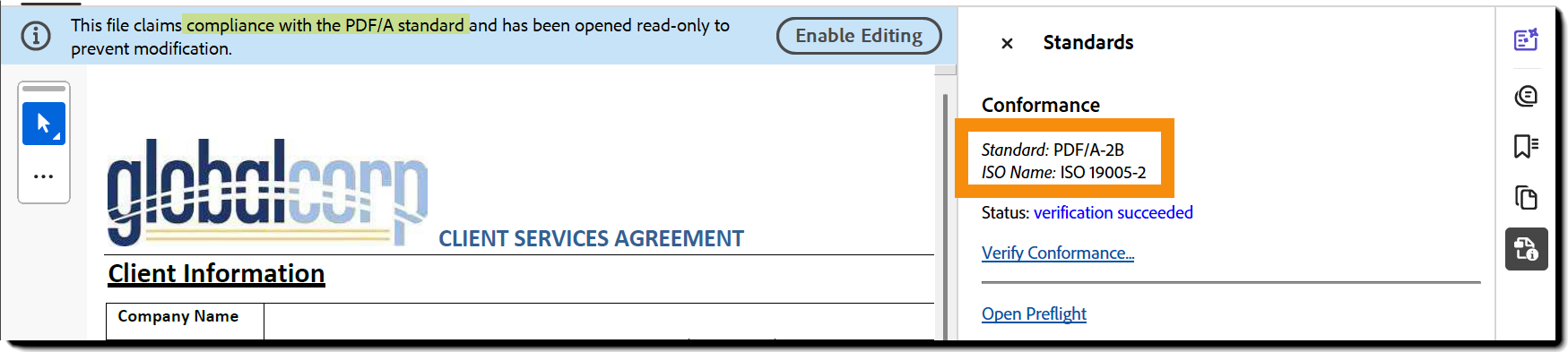
The signed document and its audit report include a compliance marker that identifies PDF/A status.

Things to know
PDF/A compliance imposes restrictions on certain Acrobat Sign features:
- Password protection is disabled for PDF/A agreements.
- The option to add Signed Document Password Protection to an agreement (through the agreement settings or Workflow Designer) is suppressed to prevent applying a password.
- The controls in the admin menu to require a signed document password is altered to remove all options that allow passwords.
- Encryption is disabled, even if encryption does not require a password to decrypt the document. Signed PDF/A documents are not encrypted after download.
- Color scheme must be sRGB. Conversion can fail if the original document specifies a color scheme other than sRGB, e.g. CMYK.
- Embedded fonts - Documents must only contain embedded fonts. If a user provides a non-PDF document that Acrobat Sign can convert to a PDF, that document must only make use of supported fonts.
- Acrobat Sign can only embed a font from the set of fonts used for modifying the documents.
- Acrobat Sign cannot embed unlicensed fonts.
Supported fonts
Adobe Acrobat Sign supports these font categories for PDF/A:
- Microsoft Office Fonts - The fonts typically included with a standard Microsoft Office installation are supported.
Additional Supported Fonts
- Adobe Arabic
- Adobe Caslon Pro
- Adobe Clean
- Adobe Devanagari
- Adobe Fan Heiti Standard
- Adobe Fangsong Standard
- Adobe Garamond Pro
- Adobe Gothic Standard
- Adobe Hebrew
- Adobe Heiti Standard
- Adobe Jenson Pro
- Adobe Kaiti Standard
- Adobe Ming Standard
- Adobe Myungjo Standard
- Adobe Pi Standard
- Adobe Song Standard
- Adobe Text Pro
- Adobe Thai
- Alexa Standard
- Arno Pro
- Balzano Standard
- Banshee Standard
- Bell Centennial Standard
- Bickham Script Pro
- Birch Standard
- Blackoak Standard
- Brioso Pro
- Brush Script Standard
- Caflisch Script Pro
- Caliban Standard
- Century Old Style Standard
- Chaparral Pro
- Charlemagne Standard
- Cooper Black Standard
- Copal Standard
- Coriander Standard
- Cottonwood Standard
- Courier Standard
- Cronos Pro
- Cutout Standard
- Flood Standard
- Fusaka Standard
- Garamond Premier Pro
- Giddyup Standard
- Graphite Standard
- Heisei Kaku Go Standard
- Heisei Maru Go Standard
- Heisei Min Standard
- Hobo Standard
- Hypatia Sans Pro
- Immi Five O Five Standard
- Ironwood Standard
- Juniper Standard
- Kazuraki SP2N
- Kazuraki SPN
- Kepler Standard
- Kozuka Gothic Pr6N
- Kozuka Gothic Pro
- Kozuka Gothic Pro VI
- Kozuka Gothic Standard
- Kozuka Mincho Pr6N
- Kozuka Mincho Pro
- Kozuka Mincho Pro VI
- Kozuka Mincho Standard
- Letter Gothic Standard
- Lithos Pro
- Madrone Standard
- Mesquite Standard
- MICR Standard
- Minion Pro
- Myriad Arabic
- Myriad Hebrew
- Myriad Pro
- Myriad Standard
- Mythos Standard
- News Gothic Standard
- Nueva Standard
- OCRA Standard
- OCRB Standard
- Orator Standard
- Ouch Standard
- Pepperwood Standard
- Poetica Standard
- Ponderosa Standard
- Poplar Standard
- Postino Standard
- Prestige Elite Standard
- Quake Standard
- Rad Standard
- Rosewood Standard
- Ryo Clean Plus N
- Ryo Display Plus N
- Ryo Display Standard
- Ryo Gothic Plus N
- Ryo Gothic Standard
- Ryo Text Plus N
- Ryo Text Standard
- Sanvito Pro
- Shuriken Standard
- Stencil Standard
- Strumpf Standard
- Symbol Standard
- Tekton Pro
- Toolbox Standard
- Trajan Pro
- Utopia Standard
- Viva Standard
- Voluta Script Pro
- Warnock Pro
- Willow Standard
- Woodtype Ornaments Standard
- Zebrawood Standard
Japanese Fonts
- BIZ UDMingcho
- BIZ UDPGothic
- HG S Kyokasho
- HG S Mincho
- Hiragino Kyokasho
- Hiragino Maru Gothic
- Hiragino Mincho
- Hiragino Reisho
- Hiragino Seikaishotai
- Hiragino Soei Kakupoptai
- Meiryo
- MS Mincho
- OCR B
- UD Digi Kyokasho N
- Yu Mincho
